
Video, 4 minutes. The written guide below covers the same steps.
Sign in
Your administrator adds you to GoDesk. You then get an email called You're invited to, with your company's name.
Select Activate My Account in the email. Choose a password of at least 8 characters, type it twice and select Activate Account.
Next time, go to your workspace address, for example acacia.godesk.co.ke. Enter your email and password and select Sign in.
Full guide: Signing in and your status.
The screen at a glance
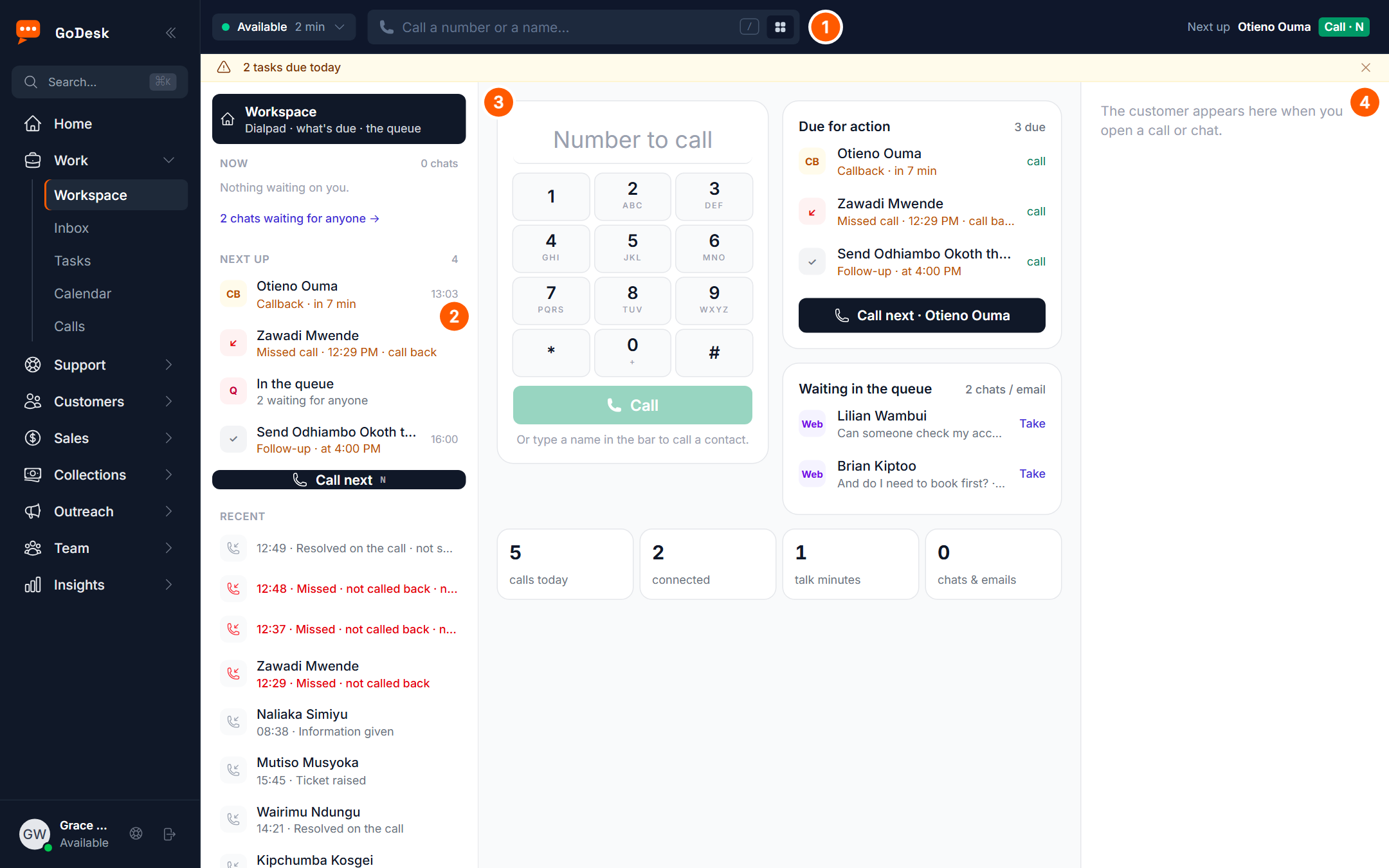
The dark bar across the top is your agent bar. It shows your status and a box to call a number or a name. During a call it shows the call.
The menu on the left takes you to everything else. Your main screen is Work → Workspace.
The Workspace has three parts. On the left: Now, Next up and Recent. In the middle: the dial pad and Due for action, or the call or chat you are working on. On the right: the customer.
Check in and set Available
In many workspaces you start as Not checked in. Calls and chats cannot reach you yet.
Select Check in in the agent bar. Your status changes to Available.
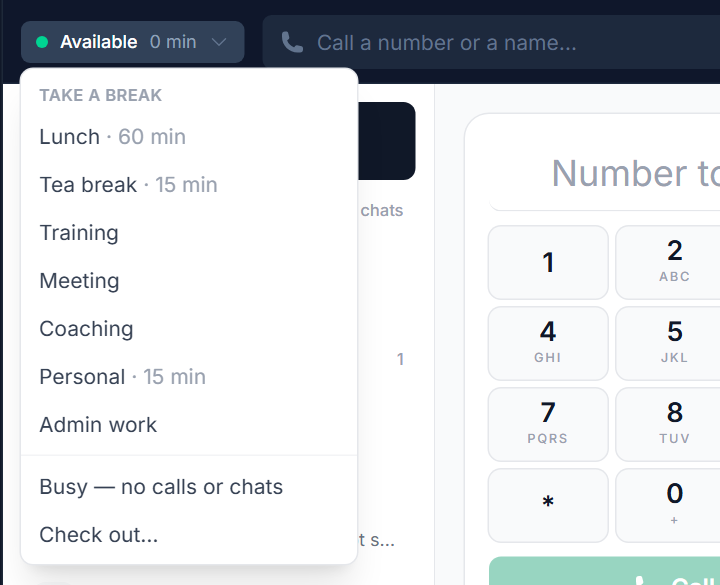
Your status menu is the button that shows Available. Use it for breaks and to check out.
Full guide: Signing in and your status.
Get your phone ready
The phone is built into GoDesk. You need a headset and a phone extension on your account.
The first time, GoDesk shows Keep your phone connected. Follow its steps, then select Done. When the browser asks to use your microphone, choose Allow.
Keep GoDesk open in one tab only. If the top bar shows Phone offline or Phone reconnecting, select Reconnect.
Full guide: Answering calls and wrap-up.
Take a call
When a call comes in, the agent bar turns blue and shows Incoming with the caller's name or number.
Select Answer, or press the space bar. The call opens in your Workspace with the customer on the right.
Type notes in the Notes box while you talk. Select End when the call is over.

Full guide: Answering calls and wrap-up.
Wrap up the call
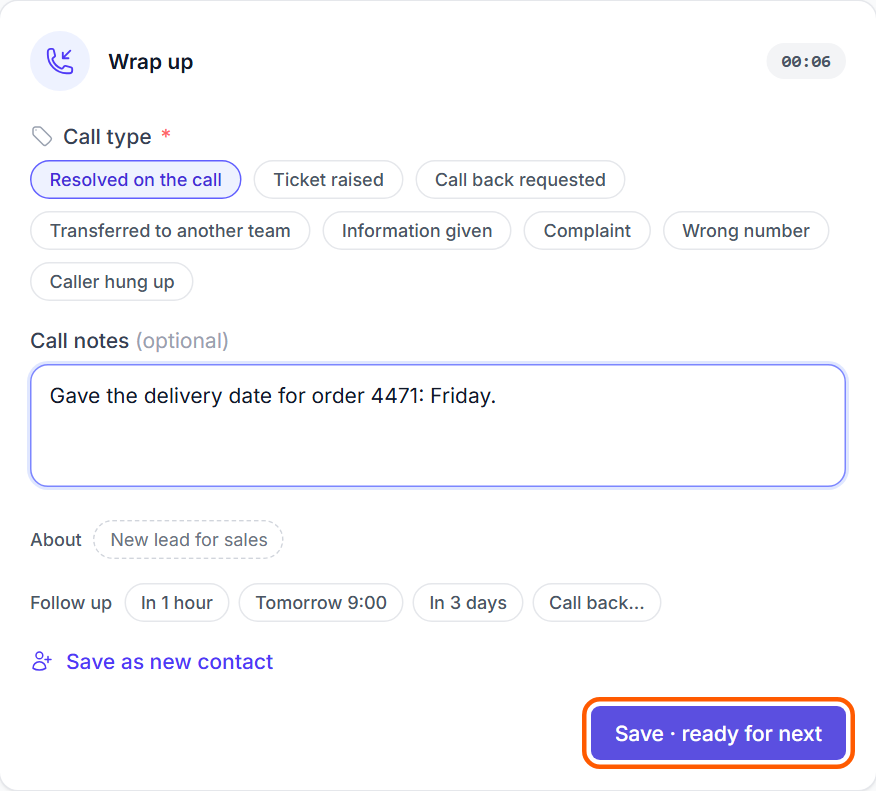
When the call ends, the Wrap up form opens in the middle of the screen. No new calls come to you until you finish.
Under Call type, pick the call outcome, for example Resolved on the call. Check your call notes.
Select Save · ready for next. You are Available again.
Full guide: Answering calls and wrap-up.
Work Next up
Next up, on the left, lists what you should do next. The most urgent is at the top: call-backs, missed calls, tickets and tasks.
Select an item to see it, then select Call or Open. Or select Call next to call the top item.
Full guides: Next up: your work in order, and Tasks and call-backs.
Chats, tickets and customers
Chats waiting for you appear under Now. Select one to reply. Full guide: Chats, WhatsApp and email in the inbox.
Tickets are customer problems that need follow-up. Full guide: Working on tickets.
To look up a customer, open Customers → Contacts. Full guide: Contacts and customer history.
Take a break and come back
Open the status menu and pick a reason under Take a break, for example Tea break.
Calls and chats stop while you are away. A timer shows how long you have been on your break.
When you return, select I'm back.
Full guide: Signing in and your status.
End of the day
Finish your last wrap-up. Then open the status menu and choose Check out.
Write a handover note for the next shift if you are asked, then select Check out.
To leave GoDesk completely, select the Log out icon at the bottom of the left menu.
Full guide: Signing in and your status.
If something is wrong
No calls are coming in: check that your status says Available, and that GoDesk is open in one tab only.
The top bar says Phone offline: select Reconnect. If it stays, tell your supervisor.
The caller cannot hear you: check that your headset is plugged in and the browser may use the microphone.
The wrap-up will not save: read the short line beside the save button. It says what is missing.
← Agent guides