
What this is for
A call outcome, sometimes called a disposition, records what happened on a call: for example Resolved on the call, Call back requested or Wrong number. Agents pick one in wrap-up, the after-call work at the end of each call.
Outcomes feed your reports, can demand notes, a ticket or a follow-up, and can trigger a message to the customer. The wrap-up rules decide how long agents spend on after-call work and when they are back on calls.
Before you start
Settings → Calls → Call outcomes, After-call work and Call scripts need the Voice & contact centre add-on.
Call outcomes, After-call work and Follow-up messages are for admins only. Call scripts can be set up by admins and supervisors.
Outcomes are shared by every call that is not made from a task. Calls made from a task or a call campaign use their task type's outcomes instead (see the last task section).
Review the old list once
In older workspaces, this list once held call outcomes, ticket resolutions and statuses together. If so, a box Review this list appears at the top of Call outcomes, with each value, how many calls and tickets used it, and a suggestion.
For each value, choose what it really is in It is a…: Call outcome, Resolution reason, Both, Ticket category or Retire it. Then select Apply. Nothing is lost: calls keep their outcome, and tickets that used a value get the matching resolution reason or category. You can open it again later with Review again.
Add and order your call outcomes
- Open Settings → Calls → Call outcomes.
- Select + Add a call outcome.
- Type the name, for example Call back requested, and select Add.
- Use the up and down arrows to put the outcomes in the order agents should see them.
- Click a name to rename it, then select Save.
Keep the list short and about the call itself. How a ticket ended belongs in Resolution reasons, and what a ticket is about belongs in Categories (both under Settings → Support).
Untick Active to hide an outcome from agents. The cross removes an outcome: one that was never used is deleted, and one already used on calls or tickets is only switched off, so past calls keep it.
Tip When an outbound call is not answered, GoDesk files it as No answer by itself (see After-call work). It creates that outcome if you do not have it, so you do not need to add your own.
Set what each outcome demands
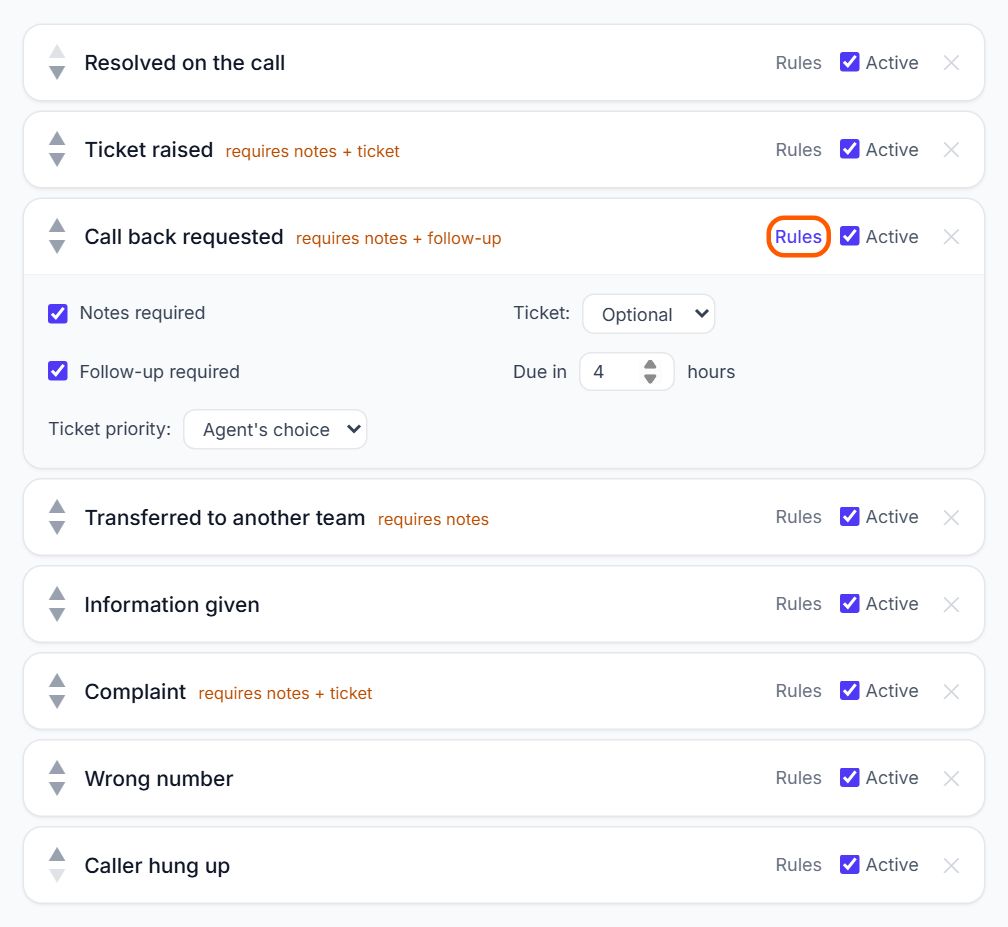
Select Rules on an outcome's row to open its rules. A short note such as requires notes + ticket then shows next to the name.
Notes required: the agent must write call notes to save.
Ticket: Never hides the ticket part of wrap-up. Optional lets the agent link or create a ticket. Required means the agent must link an existing ticket or create a new one.
Ticket priority: the priority a ticket created from this outcome starts with, or Agent's choice.
Follow-up required: the agent must set a follow-up, which creates a task assigned to them. Due in sets when it is due by default, from 1 to 720 hours.
Set the after-call work rules
Open Settings → Calls → After-call work. The page is headed Agent Workflow. Ticks save at once, and number boxes save when you click outside them. Saved. appears at the bottom.
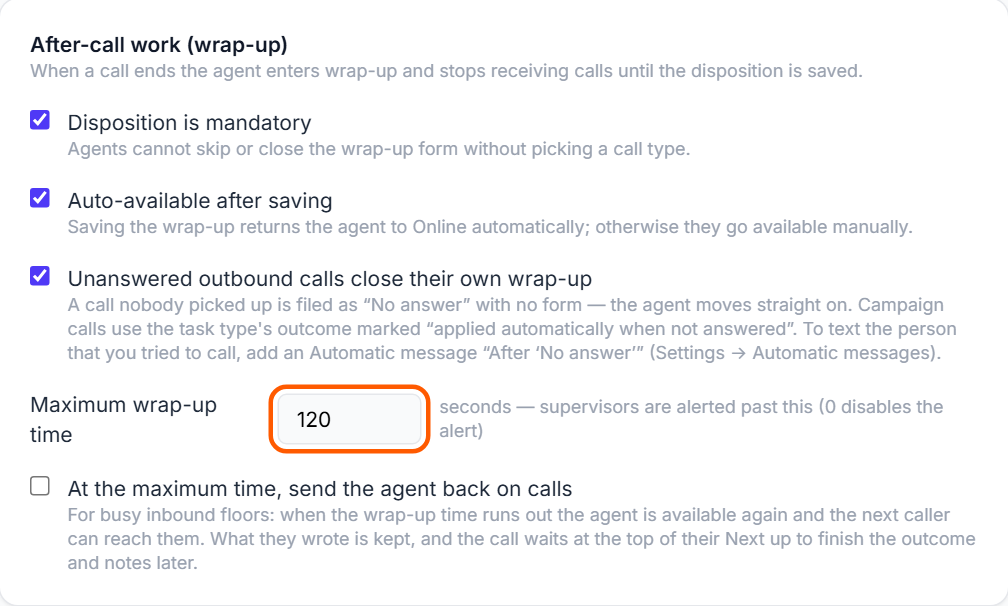
Disposition is mandatory: agents cannot skip or close wrap-up without picking an outcome. On by default.
Auto-available after saving: saving wrap-up puts the agent back to Online. Otherwise they make themselves available. On by default.
Unanswered outbound calls close their own wrap-up: an outbound call nobody picked up is filed as No answer with no form, so the agent moves straight on. On by default.
Maximum wrap-up time: in seconds, 120 by default. Past this, the timer turns red and supervisors are alerted. 0 switches the alert off.
At the maximum time, send the agent back on calls: for busy inbound teams. When the time runs out the agent is available again, what they wrote is kept, and the call waits at the top of their Next up so they can finish the outcome and notes later. It needs a maximum wrap-up time above 0 and does not apply to task or campaign calls. Off by default.
Conversation pickup: No-accept timeout is for chats. A conversation offered to an agent who does not accept it within this many minutes goes back to the queue. 5 by default, 0 switches it off.
The same page holds the missed-rings rule, the starting queue for each chat channel and the chat and email targets. See Queues and call routing.
Send a message after an outcome
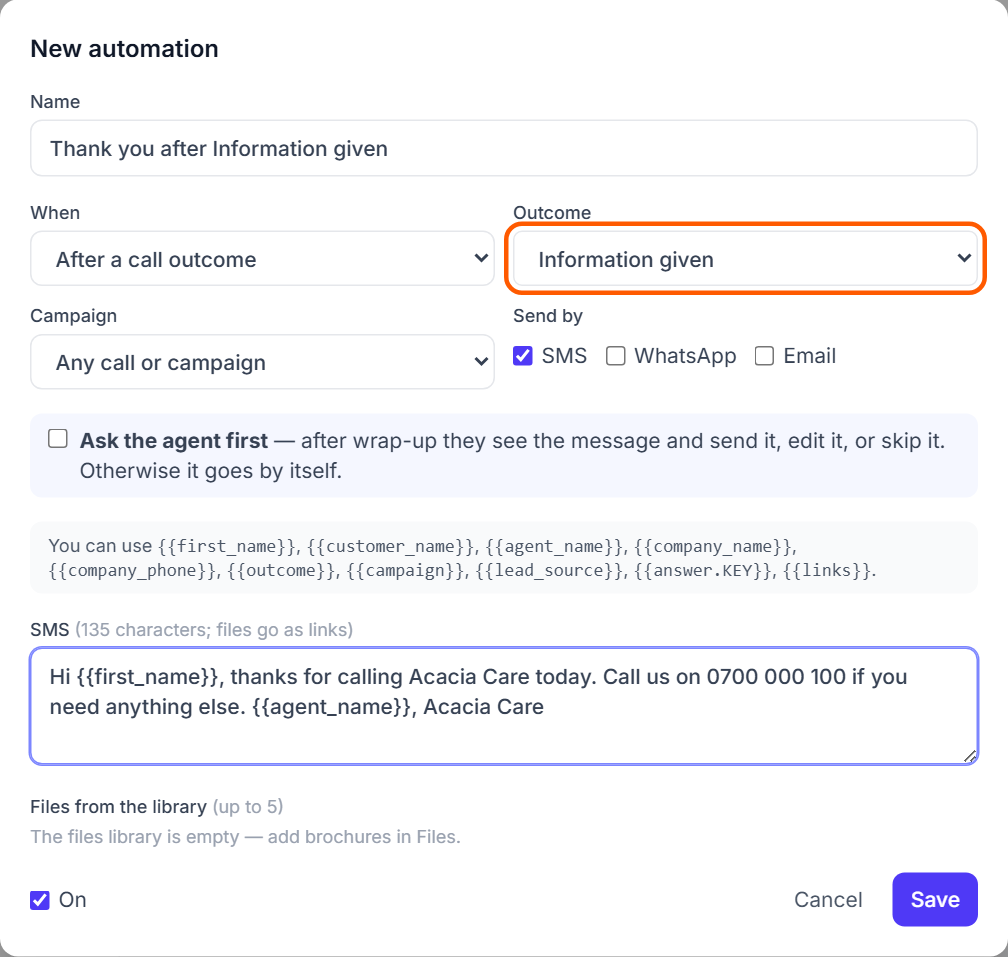
Follow-up messages are sent to the customer by themselves after an outcome, for example a thank-you after Information given, or a text after several unanswered attempts in a campaign.
- Open Settings → Calls → Follow-up messages and select New automation.
- Enter a Name, for example Thank you after Information given.
- In When, choose After a call outcome, then the Outcome. Or choose After unanswered attempts (campaigns) and the number of attempts.
- In Campaign, keep Any call or campaign or pick one campaign.
- Under Send by, tick SMS, WhatsApp or Email and write each message. Add files from the library if you want.
- Tick Ask the agent first if the agent should see the message after wrap-up and send, edit or skip it.
- Keep On ticked and select Save.
For WhatsApp, also choose an Approved template: WhatsApp only allows templates when the customer has not written in the last 24 hours. With more than one channel ticked, choose Send on every channel ticked or Only the first that works, in this order.
Contact hours are respected, and the same message never reaches the same contact twice within 12 hours. Sent shows how many times a message went and each result. Every automation is also under Settings → Channels & messages → Automations.
Set up call scripts
A call script is what agents say, shown beside the call. Open Settings → Calls → Call scripts.
- Under Scripts, select New script.
- Enter a Script name and the text. Placeholders such as {first_name} and {agent_first_name} fill in for each call.
- Select Save.
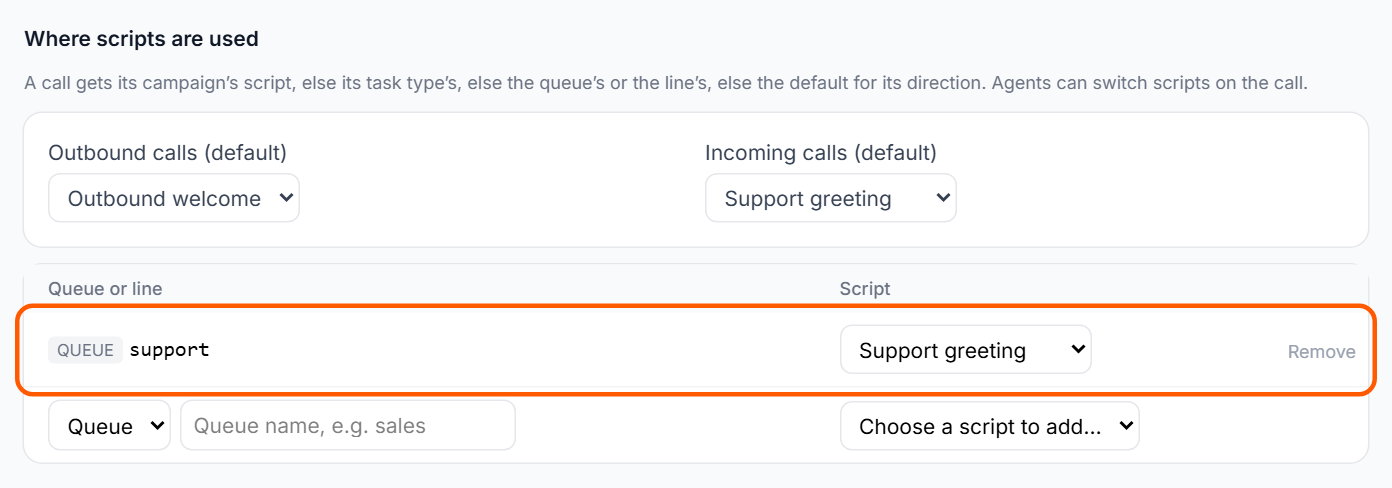
- Under Where scripts are used, choose a script for Outbound calls (default) and Incoming calls (default).
- To use another script for a queue or a number, choose Queue or Line, type the queue name or number, then pick the script.
- Select Save at the bottom of the section.
A call gets its campaign's script first, then its task type's, then the queue's or the line's, then the default for its direction. Agents can switch scripts on the call. Retire takes a script out of use, and Restore brings it back.
What the agent sees at the end of a call
When a call ends, the agent goes into wrap-up and stops receiving calls until it is saved. The wrap-up opens as Call Wrap-up, or as Wrap up inside the agent workspace, with a timer that turns red past your maximum time.
Your outcomes appear as buttons under Call type. Under them is Call notes, marked with a star when the outcome requires notes. An outcome with a ticket rule adds a Ticket part (No ticket, Link existing, Create new), and one with Follow-up required adds a Follow-up part with a date and what needs to happen.
The save button is Save and complete wrap-up, or Save · ready for next in the agent workspace. Until the rules are met, a line explains why, for example Select a call type to save or This call type requires notes. Skip only appears when Disposition is mandatory is off.
When At the maximum time, send the agent back on calls is on, the agent sees Back on calls in, with the seconds left.
See the agent guide Answering calls and wrap-up for the agent's side.
Task and campaign calls
Calls made from a task or a call campaign show that task type's outcomes under Outcome instead of your call outcomes. Set them in Settings → Tasks → Task types.
Check it works
Make a test call, hang up and check that wrap-up shows your outcomes in your order.
Pick an outcome with Notes required and try to save without notes: the save button stays off and the line says the call type requires notes.
If you added a follow-up message, save an outcome that triggers it, then open Follow-up messages and check that Sent went up by one.
If something is wrong
A disposition with this name already exists: another outcome has the same name, perhaps switched off. Turn that one back on with Active instead.
No call types are set up yet. Add notes and save. in wrap-up: there are no active outcomes. Add some, or tick Active on the ones you have.
A task outcome is missing from the Outcome list in a follow-up message: task-type outcomes that make the dialer try again are not offered there. Use After unanswered attempts (campaigns) for those.
Failed to save, with admin access is required, on After-call work: only admins can change these rules.
← Administrator guides