
What this is for
This guide is your map. It lists the settings a new contact centre workspace needs, in the order that saves you going back: each step builds on the one before. For each step you get why it matters, where it is, and the guide that covers it in full.
Work through it top to bottom, then run the go-live checklist at the end before your agents take real calls.
Before you start
You need the Admin role. Most of these settings are for admins only; supervisors can manage Agents and Teams.
Settings only shows the pages your plan includes. Some steps below need an add-on, and say so. If a page this guide mentions is missing, your workspace does not have that add-on, or your role cannot open it. Ask GoDesk support about add-ons.
For calls, your workspace must be linked to GoDesk Voice, and your extensions and phone numbers must exist there. GoDesk sets this up when your workspace is created. Check that Settings → Channels & messages → Channels shows a GoDesk Voice channel.
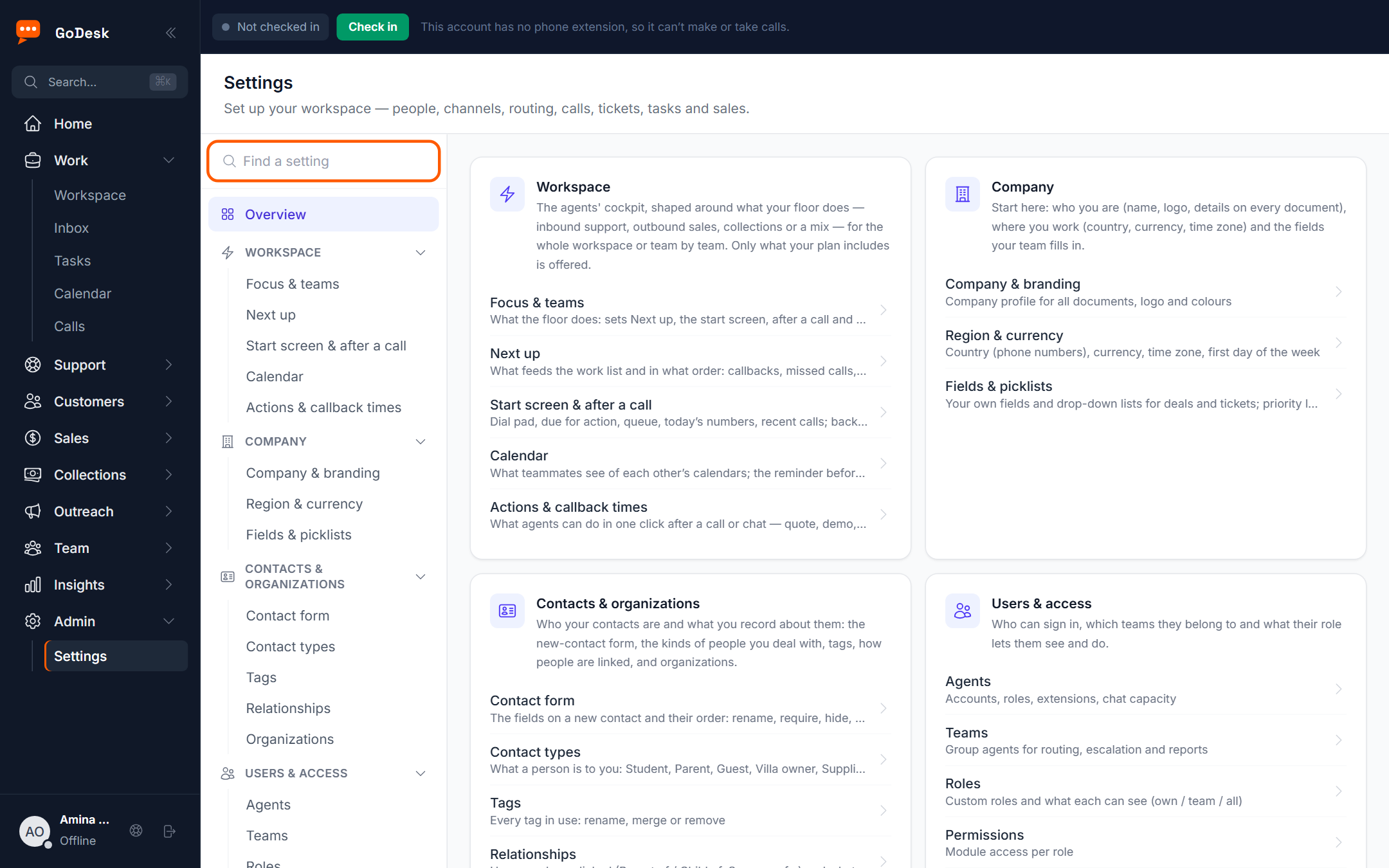
Open Settings from the Admin section of the menu. The Overview lists every group with its pages. Use Find a setting at the top of the Settings menu to jump to a page by name.
1. Company details and region
Your company profile goes on every document you send customers, and your country decides how phone numbers are saved and matched to callers. Set the country before anyone imports or types in contacts.
Where: Settings → Company → Company & branding, and Settings → Company → Region & currency.
Guide: Company details, region and opening hours.
2. Opening hours and holidays
Your opening hours decide when the phone lines play your closed message, and can limit ticket service targets to the hours you are open. With no calendar, the phones ring around the clock.
Where: Settings → Routing & service levels → Opening hours.
Guide: Company details, region and opening hours.
3. People and teams
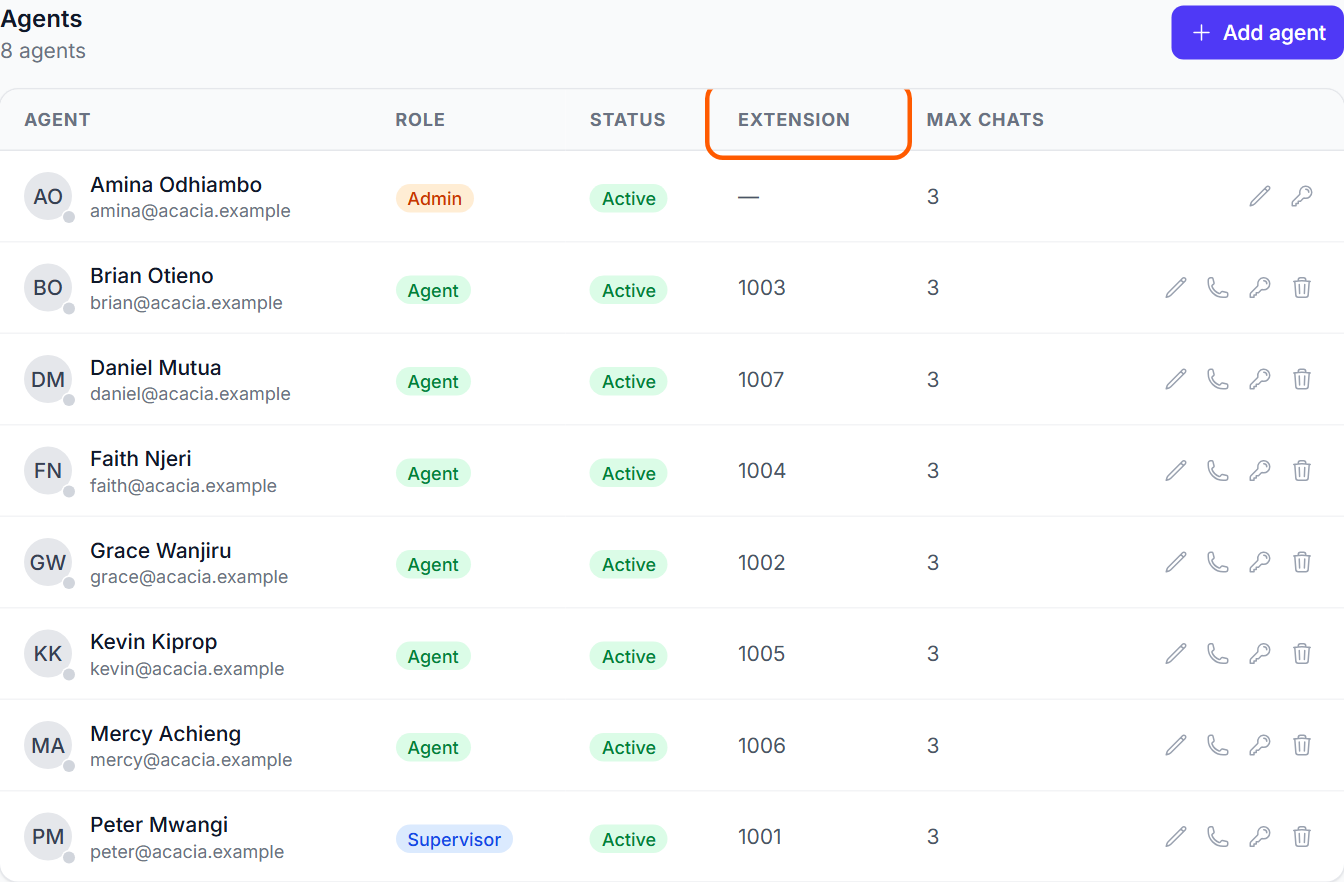
Add everyone who will sign in, then group them into teams. Teams are used for routing, escalation, record access and reports, so create them before queues and roles. In the training workspace these are Customer care and Sales.
Where: Settings → Users & access → Agents (select Add agent) and Settings → Users & access → Teams (select New team). Each new person gets an activation email to set their password.
Guide: People, teams and roles.
4. Roles and what people can see
A role decides what someone can open and change, and whether they see only their own records, their team's or everyone's. The built-in roles are Admin, Supervisor, Agent, Read-only and Collaborator (tasks only, takes no seat). Build your own when none fits.
Where: Settings → Users & access → Roles (select New Role) and Settings → Users & access → Permissions. Admins only.
Guide: People, teams and roles.
5. Phone lines and extensions
Each agent who takes calls needs an extension: their phone line on GoDesk Voice. The browser softphone rings on it. Pick it in the Extension field when you add or edit the agent; GoDesk fills in the phone login for you.
Where: Settings → Users & access → Agents, then Edit agent. Each person's softphone choices are in Settings → Calls → Softphone.
Needs the Voice & contact centre add-on.
Guide: Phone lines and the softphone.
6. Queues
A queue is where waiting work collects until an agent takes it. For calls, link a GoDesk queue to the matching phone queue so the right agents ring, for example the Support queue to the phone queue support.
Where: Settings → Routing & service levels → Queues (select New Queue) to create queues and choose how work is shared. Then open Queues in the Team section of the menu to add members and select Link calls to a phone queue.
The Queues page in the menu needs the Omnichannel inbox add-on. Phone queues need the Voice & contact centre add-on.
Guide: Queues and call routing.
7. Call outcomes and after-call work
Call outcomes are what agents pick at wrap-up to say what happened, for example Call back requested. Reports, follow-up messages and callbacks all use them, so agree a short list before go-live. After-call work sets how long wrap-up may last and whether an outcome is required.
Where: Settings → Calls → Call outcomes and Settings → Calls → After-call work.
Needs the Voice & contact centre add-on.
Guide: Call outcomes and after-call work.
8. The agent workspace
This shapes the screen your agents work in: what feeds Next up and in what order, the start screen, what opens after a call and the one-click actions. Pick a focus such as Inbound support, Outbound sales, Collections or Everything, for the whole workspace or team by team.
Where: Settings → Workspace → Focus & teams, Next up, Start screen & after a call, and Actions & callback times.
Guide: The agent workspace.
Tip If your agents still see the older inbox layout rather than Next up, ask GoDesk support to switch the agent workspace on for your workspace.
9. Contacts and organizations
Decide what you record about the people you deal with before contacts start coming in: the fields on the new-contact form, the kinds of contact (for example Student, Parent or Supplier), tags, how people are linked and the organizations they belong to.
Where: Settings → Contacts & organizations → Contact form, Contact types, Tags, Relationships and Organizations.
Guide: Contacts and organizations setup.
10. Channels
Connect the other ways customers reach you: WhatsApp, SMS, email and web chat. Conversations from them arrive in the Inbox alongside calls.
Where: Settings → Channels & messages → Channels, and WhatsApp templates for messages sent outside the 24-hour window.
Conversations in the Inbox need the Omnichannel inbox add-on.
Guide: Connecting channels.
11. Routing, service levels and automations
Once channels and queues exist, decide which conversations go to which queue or team, the response times you promise, and the messages GoDesk sends by itself, for example a thank-you after a call.
Where: Settings → Routing & service levels → Routing rules and SLA policies & service plans; Settings → Channels & messages → Automations; the Support group for ticket categories, statuses and escalation.
Routing rules need the Omnichannel inbox add-on. The Support group needs the Support desk add-on.
Guide: Routing, SLAs and automations.
12. Shifts and breaks (optional)
If you plan shifts, rosters, leave and break limits in GoDesk, set them up before go-live so check-ins and lateness are counted from day one.
Where: Settings → Workforce.
Needs the Workforce management add-on.
Go-live checklist
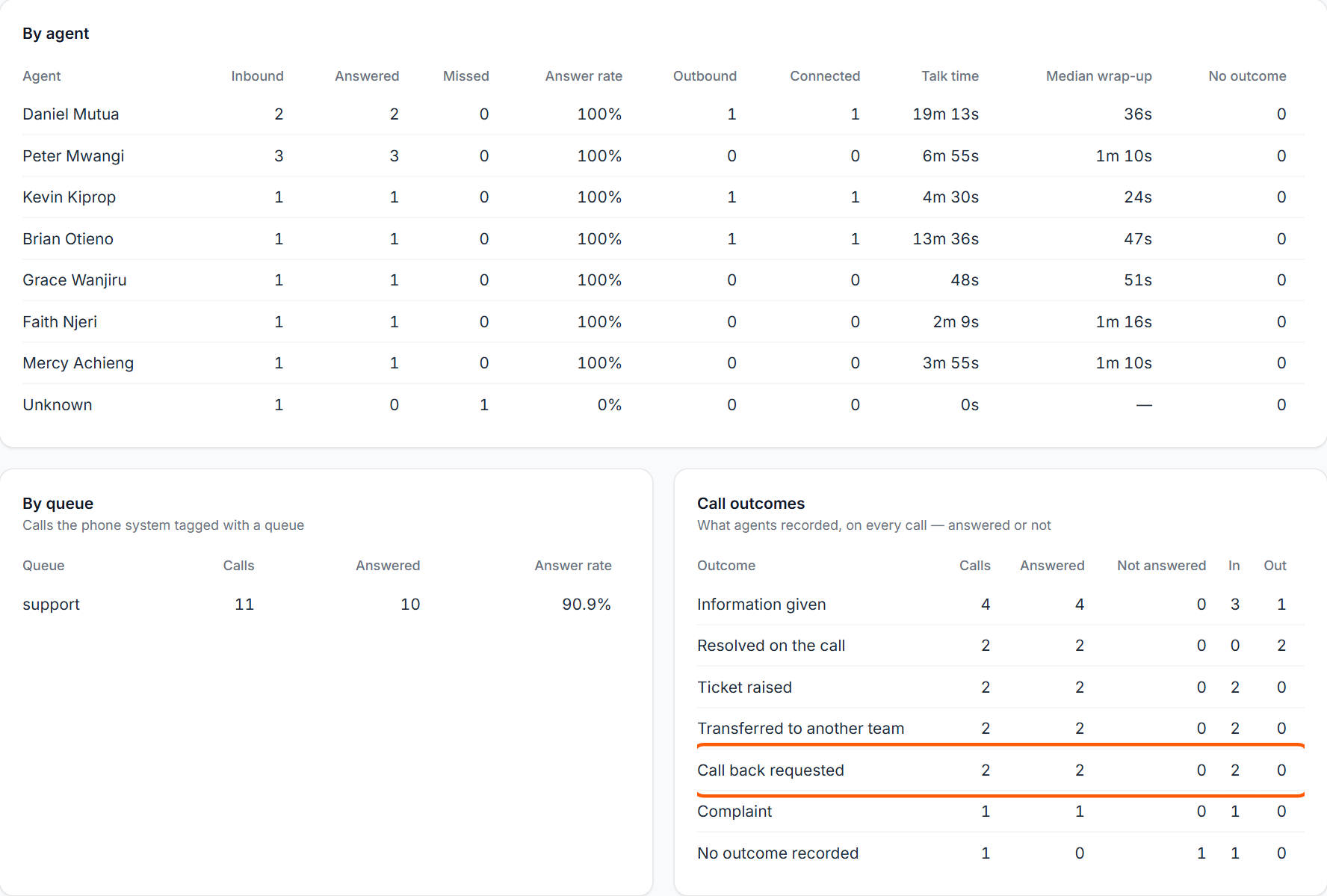
Run this with one agent before the whole team starts. The example uses Grace Wanjiru on extension 1002 in the Support queue.
- Ask Grace to sign in and select Check in. Her status bar shows Available.
- During opening hours, call your number, 0700 000 100, from a mobile, and choose the option for support if your line has a menu.
- Check Grace's softphone rings. She answers, speaks for a moment and hangs up.
- In wrap-up, Grace picks a call outcome, for example Call back requested, and saves.
- Open Reports → Calls for today. The call shows under By agent, By queue and Call outcomes.
- Open Reports → Call queues. The call is counted as Answered for the support phone queue. Allow a few minutes for it to appear.
Then ring the number outside opening hours, or on a holiday you have added, and check you hear the closed message.
Guide: Reports for administrators.
If something is wrong
A page this guide names is not in Settings: your workspace does not have the add-on it needs, or your role cannot open it. Check your role in Settings → Users & access → Agents, then ask GoDesk support about the add-on.
An agent shows phone not set up next to their extension in the Agents list: their phone cannot connect. Select it to check the line, test it and repair the login.
All extensions on the voice platform are already assigned: every extension on GoDesk Voice has an agent. Free one up by removing it from someone who has left, or ask GoDesk support for a new extension.
The agent sees You're not checked in, and calls do not reach them: they must select Check in. If they are checked in and the call still does not ring, check they are a member of the queue and that the queue is linked to its phone queue on the Queues page.
← Administrator guides