
What this is for
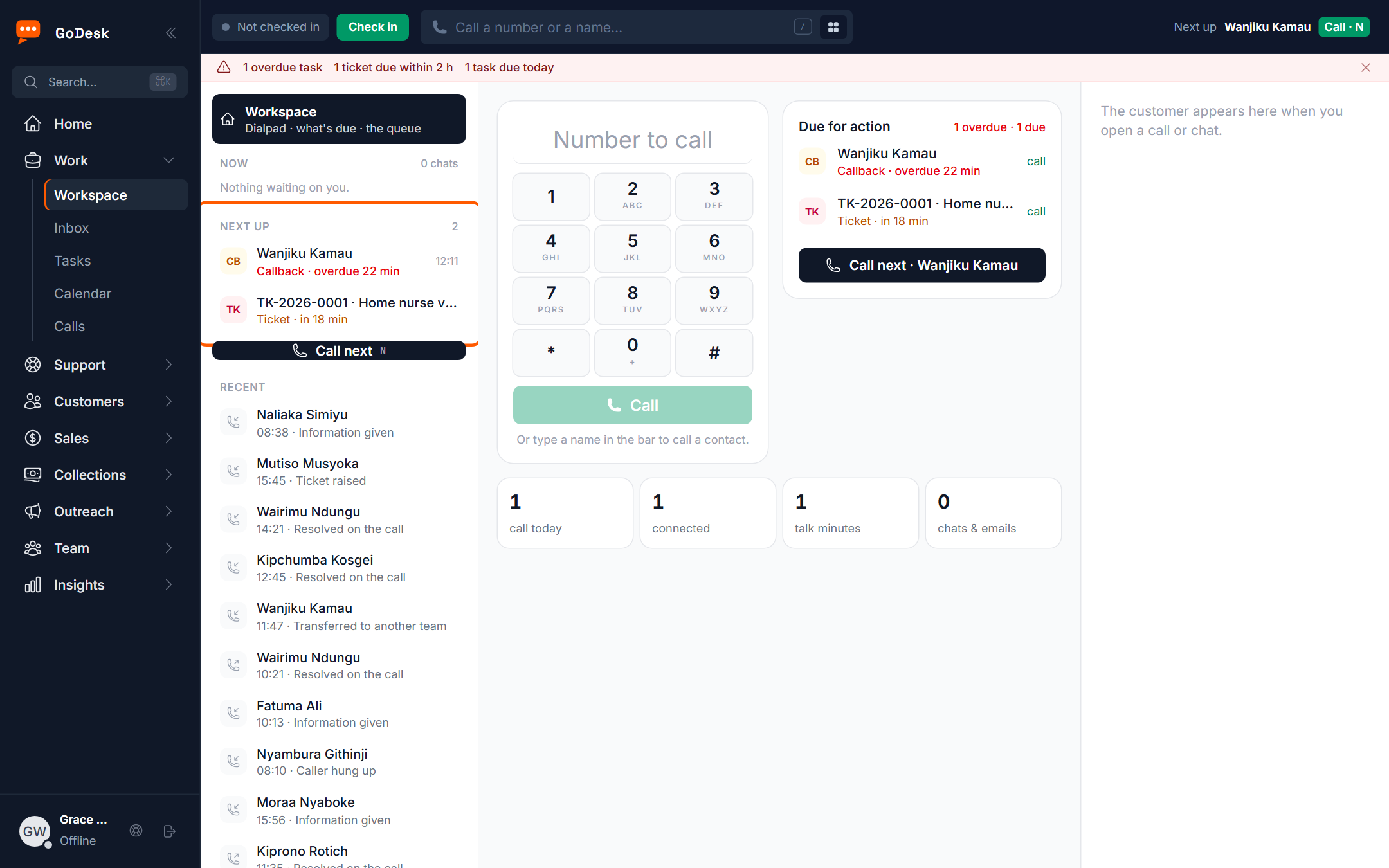
The Workspace is the screen agents open from Work → Workspace in the side menu. On the left they see Now (the call and the chats waiting on them), Next up (one ranked list of what is due) and Recent (their last calls). In the middle is the one thing they are working on, and on the right the customer.
The pages under Settings → Workspace decide how that screen behaves. A support floor that waits for customers needs a different screen from a sales floor that calls out from a list, so you pick a focus first and then adjust the details. Every change applies to the whole workspace, or only to one team if you choose that team at the top of the page.
This guide ends with a worked example: Acacia Care Ltd setting up its Customer care team as an inbound support floor.
Before you start
You need to be an administrator. The Workspace pages are Admins only, and only an administrator can save them.
Create your teams first (Settings → Users & access → Teams) if different teams will work differently, for example Customer care and Sales.
GoDesk only offers what your plan includes. If your workspace has no Sales add-on, for example, you will not see Deals in Next up or New deal in the actions. The dial pad and Recent calls need the voice features, and an agent only sees them if they have an extension.
Tip If agents see the Inbox when they open Work in the side menu instead of Workspace, the agent workspace is not switched on for your workspace yet. Ask GoDesk support to switch it on. Your settings here are kept and apply as soon as it is.
Choose whom you are setting up
Every Workspace page starts with the same bar: Setting up, with a list of The whole workspace and each of your teams. The choice stays while you move between the four pages, so you can set up one team from start to finish.
Next to it you see the current Focus. When you pick a team, the bar tells you either that the team has its own setup, or that it works like the rest of the workspace. Saving any change while a team is picked gives that team its own setup, and the team shows as own setup in the list.
To send a team back to the workspace setup, pick it and select Use the workspace's instead.
An agent gets the setup of their team if it has its own, otherwise the workspace setup. If someone is in more than one team with its own setup, GoDesk uses the first of those teams (the one created earliest).

Pick a focus
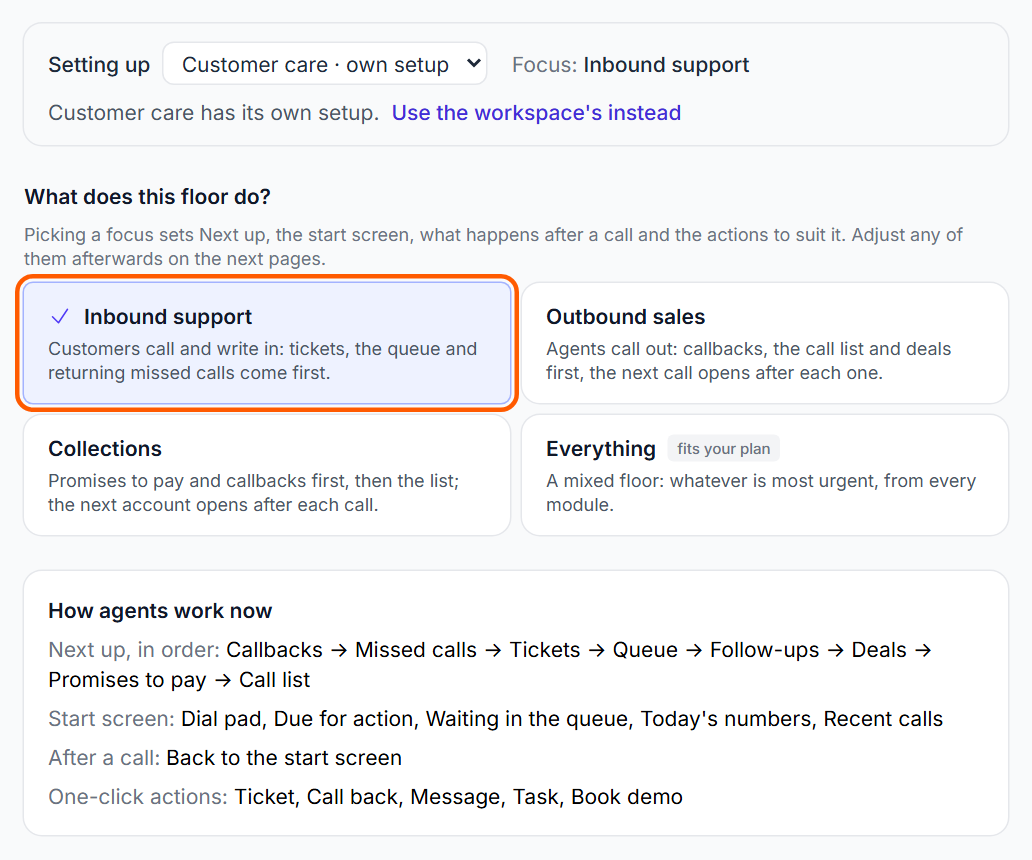
Open Settings → Workspace → Focus & teams. Under What does this floor do? you see four choices. One of them is marked fits your plan: the one GoDesk suggests from the add-ons your workspace has.
Inbound support: customers call and write in. Tickets, the queue and returning missed calls come first. After a call the agent goes back to the start screen.
Outbound sales: agents call out. Callbacks, the call list and deals come first, and the next call opens after each one.
Collections: promises to pay and callbacks first, then the list. The next account opens after each call.
Everything: a mixed floor, showing whatever is most urgent from every module.
- Open Settings → Workspace → Focus & teams.
- In Setting up, choose The whole workspace or a team.
- Select the focus that fits the floor, for example Inbound support.
Picking a focus saves straight away, with no Save button. It sets Next up, the start screen, what happens after a call and the actions to suit. The box How agents work now, under the choices, sums up the result: Next up in order, the start screen panels, after a call, and the one-click actions.
If you later change any detail on the other pages, the focus shows as Custom. Picking a focus again resets those pages to that focus. Your callback times, the number of one-click actions and how long missed calls stay are kept.
Set what feeds Next up
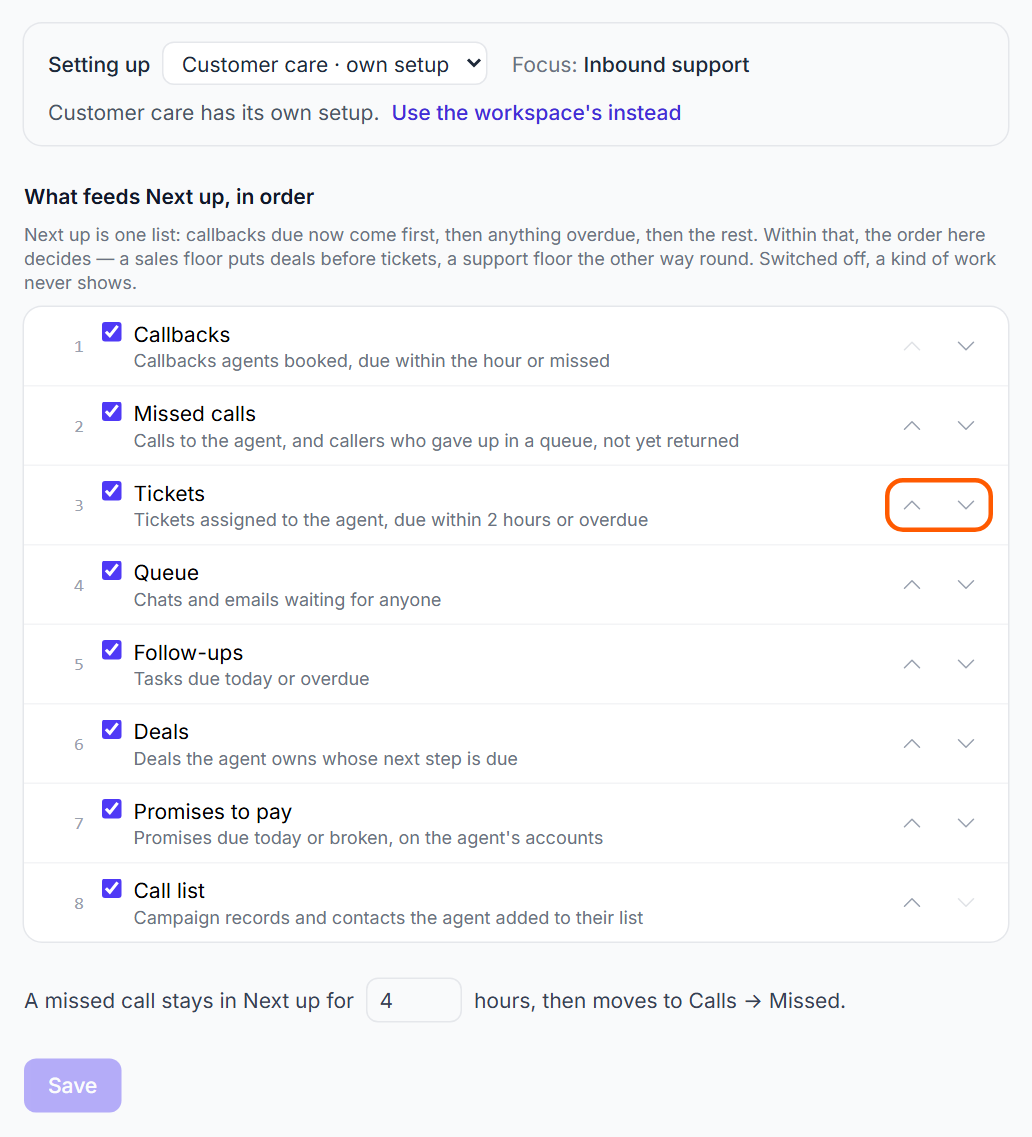
Open Settings → Workspace → Next up. The list What feeds Next up, in order shows each kind of work your plan includes, with a short note on what it covers:
Callbacks: callbacks agents booked, due within the hour or missed. Missed calls: calls to the agent, and callers who gave up in a queue, not yet returned. Deals: deals the agent owns whose next step is due. Tickets: tickets assigned to the agent, due within 2 hours or overdue. Promises to pay: promises due today or broken, on the agent's accounts. Follow-ups: tasks due today or overdue. Call list: campaign records and contacts the agent added to their list. Queue: chats and emails waiting for anyone.
Next up is one list. Callbacks due now come first, then anything overdue, then the rest. Within that, the order here decides. A support floor puts tickets before deals; a sales floor the other way round. A kind of work you switch off never shows.
- Open Settings → Workspace → Next up.
- Untick any kind of work this floor should not see.
- Use the up and down arrows to put the rest in order.
- Set A missed call stays in Next up for, between 1 and 24 hours.
- Select Save.
After the time you set, a missed call leaves Next up. It is still on the Calls page: set the status filter to Missed. The usual setting is 4 hours.
Wrap-ups an agent put off (when the wrap-up time limit sent them back on calls) always show at the top of Next up as Finish the wrap-up, whatever you switch off here.
Set the start screen and what happens after a call
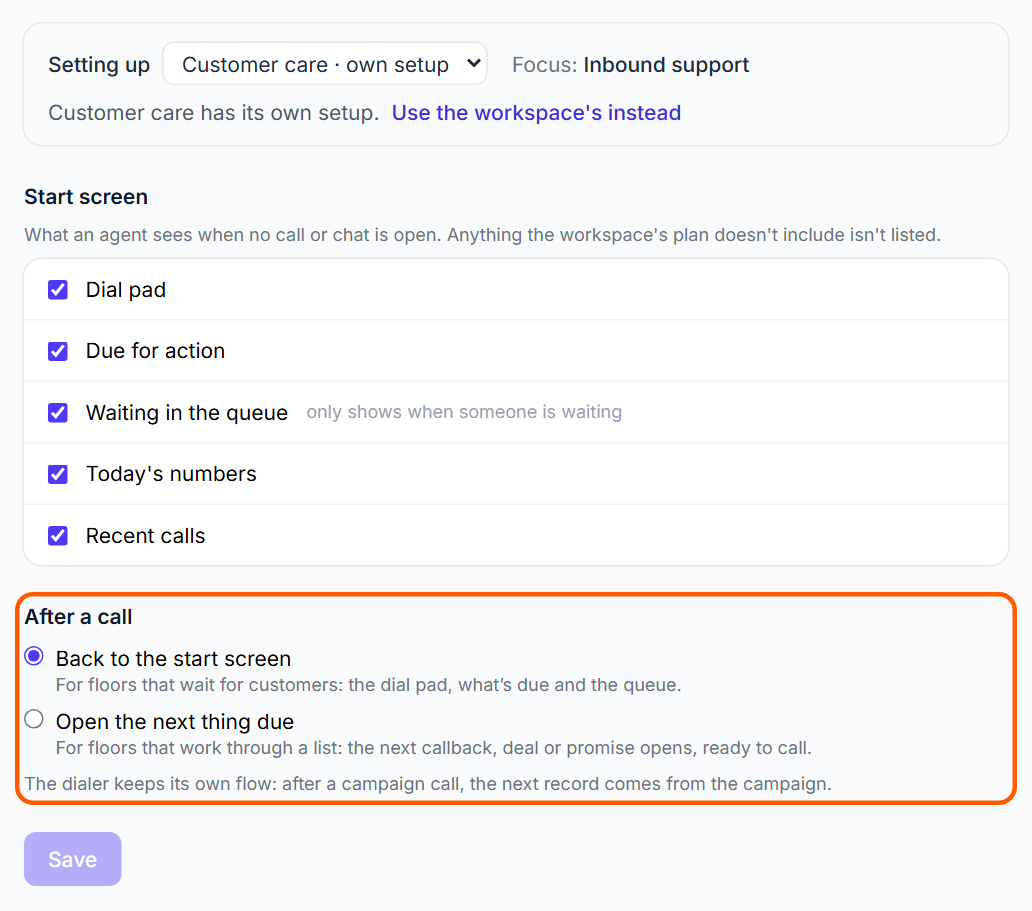
Open Settings → Workspace → Start screen & after a call. Under Start screen, tick the panels an agent sees when no call or chat is open:
Dial pad: for agents who dial by keypad. Due for action: callbacks, follow-ups, tickets and promises, overdue first, with a Call next button. Waiting in the queue: callers and chats waiting for anyone; it only shows when someone is waiting, and an agent takes a chat with Take. Today's numbers: calls today, connected, talk minutes, and chats & emails. Recent calls: the agent's last calls, in the left column, with missed ones marked if nobody called back.
Under After a call, choose one:
Back to the start screen: for floors that wait for customers. The agent sees the dial pad, what is due and the queue.
Open the next thing due: for floors that work through a list. The next callback, deal or promise opens, ready to call.
- Open Settings → Workspace → Start screen & after a call.
- Tick or untick the panels under Start screen.
- Under After a call, choose Back to the start screen or Open the next thing due.
- Select Save.
Call campaigns keep their own flow. After a call made from the dialer, the next record comes from the campaign, whatever you choose here.
Set the actions and callback times
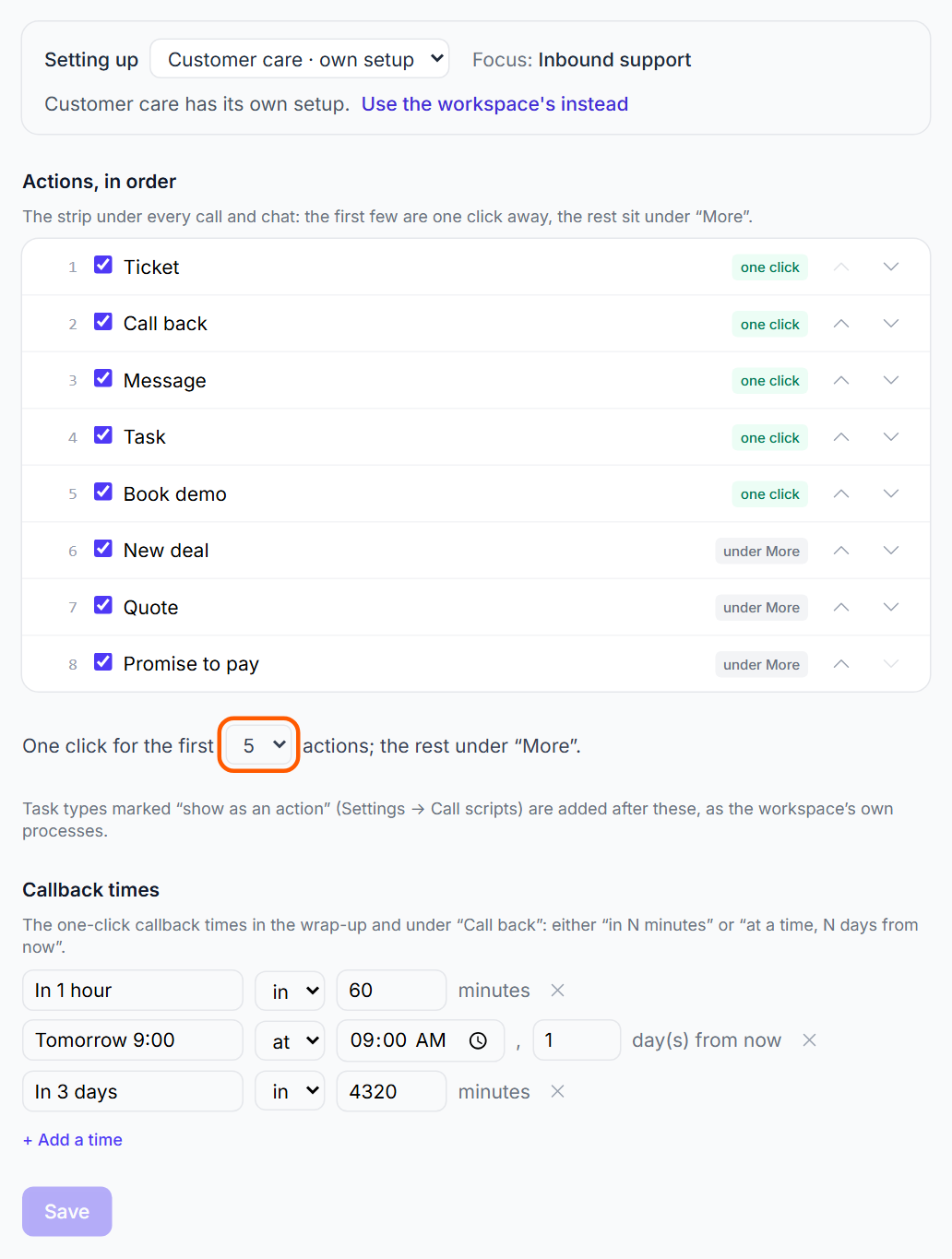
Under every call and chat, agents see a Do strip: the next things they can do for this customer in one click. Open Settings → Workspace → Actions & callback times to choose which actions appear and in what order.
The built-in actions are Quote, Book demo, Ticket, Task, Message, New deal, Promise to pay and Call back. Each only appears if your plan includes what it needs: Quote needs the quotes and sales add-ons and permission to send quotes, Ticket needs tickets, Promise to pay needs collections, and so on. Message only appears when the customer has a phone number or email.
The first few actions are one click away and show one click; the rest sit under More. Task types you marked Show as an action (Settings → Calls → Call scripts) are added after these, as your own processes.
- Open Settings → Workspace → Actions & callback times.
- Untick actions this floor never uses.
- Use the arrows to put the most used first.
- In One click for the first, choose how many actions show directly (3 to 8).
- Under Callback times, edit, remove or add the times (up to 6).
- Select Save.
Callback times are the one-click times in the wrap-up and under Call back. Each one has a label and is either in a number of minutes (at least 5), or at a time a number of days from now (0 to 30). New workspaces start with In 1 hour, Tomorrow 9:00 and In 3 days. Select + Add a time to add one.
Tip Actions are greyed out until the caller is saved as a contact. Hovering shows Save the caller as a contact first.
Calendar settings
Settings → Workspace → Calendar sets two things for Work → Calendar, and saves as soon as you choose.
Teammates' calendars: what an agent sees of the people in their own teams. Only their own, When they're busy (teammates show as Busy, never what or with whom), or Everything. Supervisors and admins always see the people their role covers, in full.
Before a meeting: Send a reminder never, or 5, 10, 15, 30 or 60 minutes before, to the organiser and to colleagues invited by their work email.
Worked example: an inbound support floor
Acacia Care Ltd has two teams. Customer care (Grace Wanjiru, Brian Otieno, Faith Njeri and Kevin Kiprop) answers calls to 0700 000 100 on the Support queue and replies to chats. Sales (Mercy Achieng and Daniel Mutua) calls out. Amina Odhiambo, the administrator, sets up Customer care first.
- Open Settings → Workspace → Focus & teams, set Setting up to Customer care and select Inbound support.
- Open Next up. Keep Callbacks, Missed calls, Tickets and Queue at the top, untick Promises to pay and Call list, set missed calls to stay 4 hours, and select Save.
- Open Start screen & after a call. Keep all five panels and Back to the start screen, so agents see the queue between calls. Select Save.
- Open Actions & callback times. Put Ticket, Call back and Message first, set One click for the first to 4 and keep In 1 hour and Tomorrow 9:00. Select Save.
- Change Setting up to Sales, select Outbound sales on Focus & teams, and adjust as needed.
Now when Grace finishes a call she lands back on the start screen with the dial pad, Due for action and anyone waiting in the queue. Her Next up shows her callbacks, then unreturned missed calls from the Support queue, then her tickets that are due. During a call she logs a ticket or books a callback from the Do strip in one click.
Check it works
After you save, the page says Saved. Agents see it on their next page load. Ask an agent on the team to reload the page.
- On Focus & teams, read How agents work now and check it matches what you planned.
- Ask an agent to open Work → Workspace and check Next up shows the kinds of work you left on, in your order.
- Ask them to make a short test call and check where they land after the wrap-up.
- On a call or chat, check the Do strip shows your one-click actions first and the rest under More.
If something is wrong
An agent does not see the team setup: they may be in another team with its own setup that comes first, or in no team at all, in which case they get the workspace setup. Check their teams in Settings → Users & access → Teams.
A kind of work, panel or action is missing from the settings: your plan does not include the add-on it needs.
The dial pad or Recent calls do not show for an agent: they have no extension. Give them one in Settings → Users & access → Agents.
The page shows Could not save. or Could not load.: reload and try again. Only administrators can save these pages.
← Administrator guides