
What this is for
Every business talks about its people in its own words: a school has students and parents, a hotel has guests and corporate bookers. Settings → Contacts & organizations lets you use your own words and record what matters to you, without asking GoDesk to change anything.
The group has five pages: Contact form, Contact types, Tags, Relationships and Organizations. Set them up in that order before your team adds or imports many contacts.
Before you start
You need to be an administrator. All five pages are Admins only, and they appear when your workspace has the Contacts module.
Decide the kinds of people you deal with (your contact types) and the few extra facts you need on each one. A short form gets filled in; a long one does not.
Customer is worked out, not chosen
There is no Customer contact type to pick. GoDesk works out who is a customer from their history: a won deal, a paid invoice or a collection account. Those contacts show a green Customer label, and the contacts filter has a Customer choice: Customers (bought or have an account) or Not customers yet.
So use contact types for what a person is to you (Member, Supplier, Partner), and let GoDesk mark them as a customer when they buy. Workspaces that used the old Customer type kept it on those contacts as the tag customer.
Set up the contact form
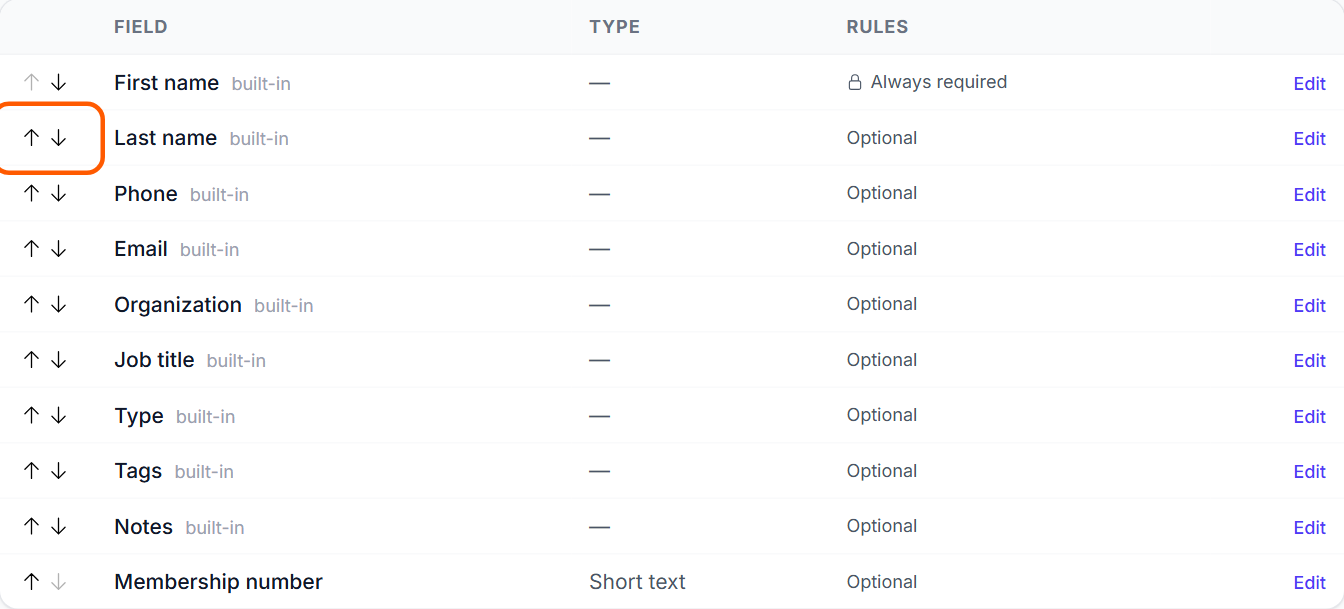
Open Settings → Contacts & organizations → Contact form. The table lists every field on a contact, in the order the New contact form shows them. Built-in fields are marked built-in: First name, Last name, Phone, Email, Organization, Job title, Type, Tags and Notes.
Type and Tags are fields like any other: you can move, rename, require or hide them. Names, required and hidden also apply when a contact is edited. First name is always required.
- Open Settings → Contacts & organizations → Contact form.
- Use the up and down arrows to put the fields in the order you want.
- Select Edit on a field to rename it in Name shown on forms.
- Tick Required, or Hide this field, as needed.
- For Job title, you can type a list of values, one per line, to make it a drop-down. Leave it empty for free text.
- Select Save.
The Rules column shows Required, Hidden, Optional, or Always required for First name.
Tip Required applies to people filling in forms. Leads from web forms, ads and imports are never rejected for a missing field. Type and Tags are only checked by forms that show them.
Add your own contact fields
Add a field for anything else you need: county, ID number, date of birth, preferred language. The types are Short text, Long text, Number, Date, Drop-down list (pick one), Drop-down list (pick several), Yes / no, Phone, Email and Web address.
- Select Add a field.
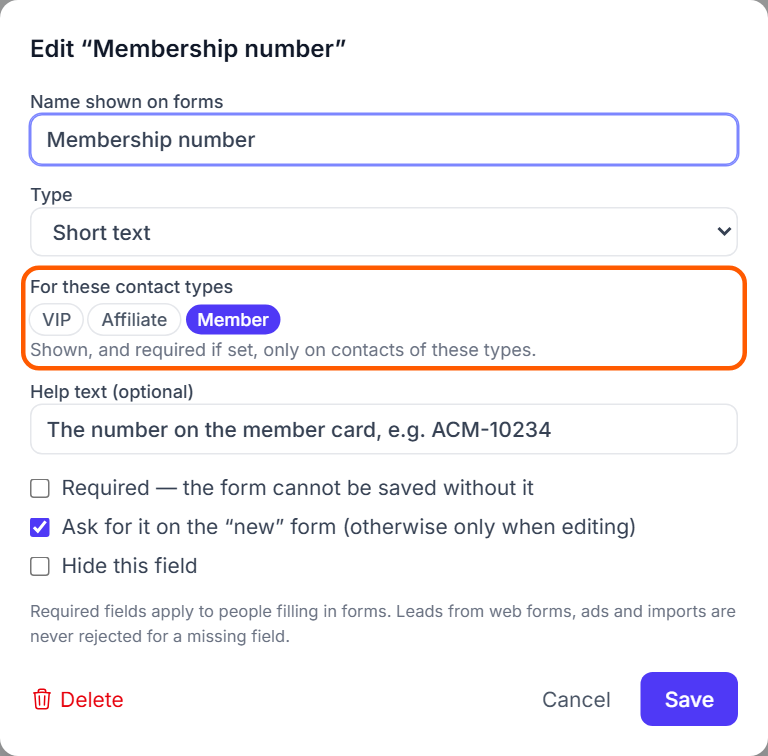
- Type the name in Name shown on forms, for example Membership number.
- Choose the Type.
- For a drop-down, type the values one per line, or pick one from Load a ready-made list (Kenya counties, Gender, Preferred language and more).
- Under For these contact types, pick the types the field is for, or pick none for every contact.
- Tick Required or Ask for it on the “new” form as needed, then select Save.
A field for some contact types only is shown, and required if you ticked Required, only on contacts of those types. On the New contact form it appears as soon as the agent picks one of those types.
If you untick Ask for it on the “new” form, the field is only asked for when a contact is edited.
To remove one of your own fields, open it and select Delete. Values already saved stay in the records but are no longer shown. Built-in fields cannot be deleted; hide them instead.
Choose what agents see on a call or chat
While a call or chat is open, the agent sees the customer's panel on the right: name, organization, phone and the fields you choose. Show what helps them on the call, such as a membership number, the account manager or a preferred language, and leave the rest on the contact page.
- Open Settings → Contacts & organizations → Contact form.
- Select a field (one of yours, or a built-in such as Job title, Type or Tags).
- Tick Show on the agent’s screen during calls and chats and select Save.
- Use the arrows in the list to set the order: the panel follows it.
Only fields that are filled in are shown, and a field meant for some contact types appears only for those contacts. Phone, Email and Organization are on until you switch them off.
Set your contact types
Open Settings → Contacts & organizations → Contact types. A contact type is what a person is to you. A contact can have several. New workspaces start with Individual, Supplier, Partner and Other.
The fastest start is Start from your kind of business. Each set adds the usual contact types and organization types for that business, and a deal pipeline for how it sells:
School or college; Consumer brand or betting; B2B sales and IT; Lending and collections; Hotel and hospitality; Real estate; Software (SaaS). When you choose one, GoDesk shows the types and pipeline stages it will add before you apply it.
- Open Settings → Contacts & organizations → Contact types.
- Under Start from your kind of business, choose a set from the list.
- Leave Switch off the current ones (contacts keep theirs) ticked to replace your current types, or untick it to add to them.
- Select Apply.
A pipeline is only added if you have none with the same name. It becomes the default pipeline only if you have no other active pipeline.
Then adjust the list below by hand. Give each type a name and a colour, move it with the arrows, select + Add for a new one, and select Save.
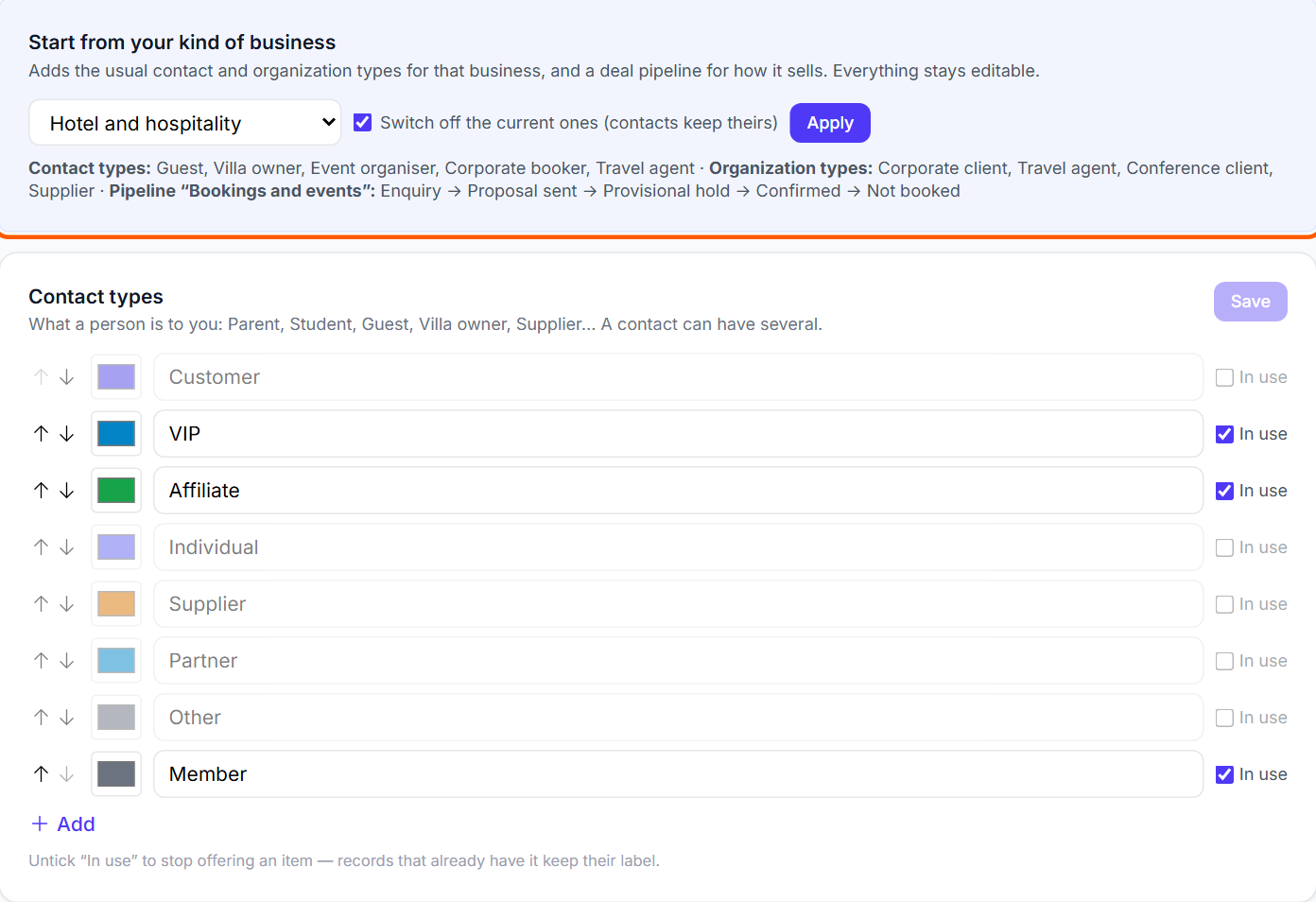
Tip To stop offering a type, untick In use rather than deleting it. Contacts that already have it keep their label.
Tidy up tags
Tags are free labels people add as they work, such as VIP or Event 2026. They are added on the contact, in bulk from the contacts list, on import or by the contacts API, and used to pick people for message and call campaigns.
Open Settings → Contacts & organizations → Tags to see every tag in use and how many contacts have it. Use Find a tag to search.
- Select Rename next to a tag.
- Type the new name and select Save, or press Enter.
- If a tag with that name exists already, confirm the merge.
Renaming fixes spelling on every contact. Renaming to a tag that already exists merges the two. Saved contact views follow the new name.
Remove takes the tag off every contact that has it. Automation rules or campaign audiences that use it will no longer match anyone, so check them first.
Set how people are linked
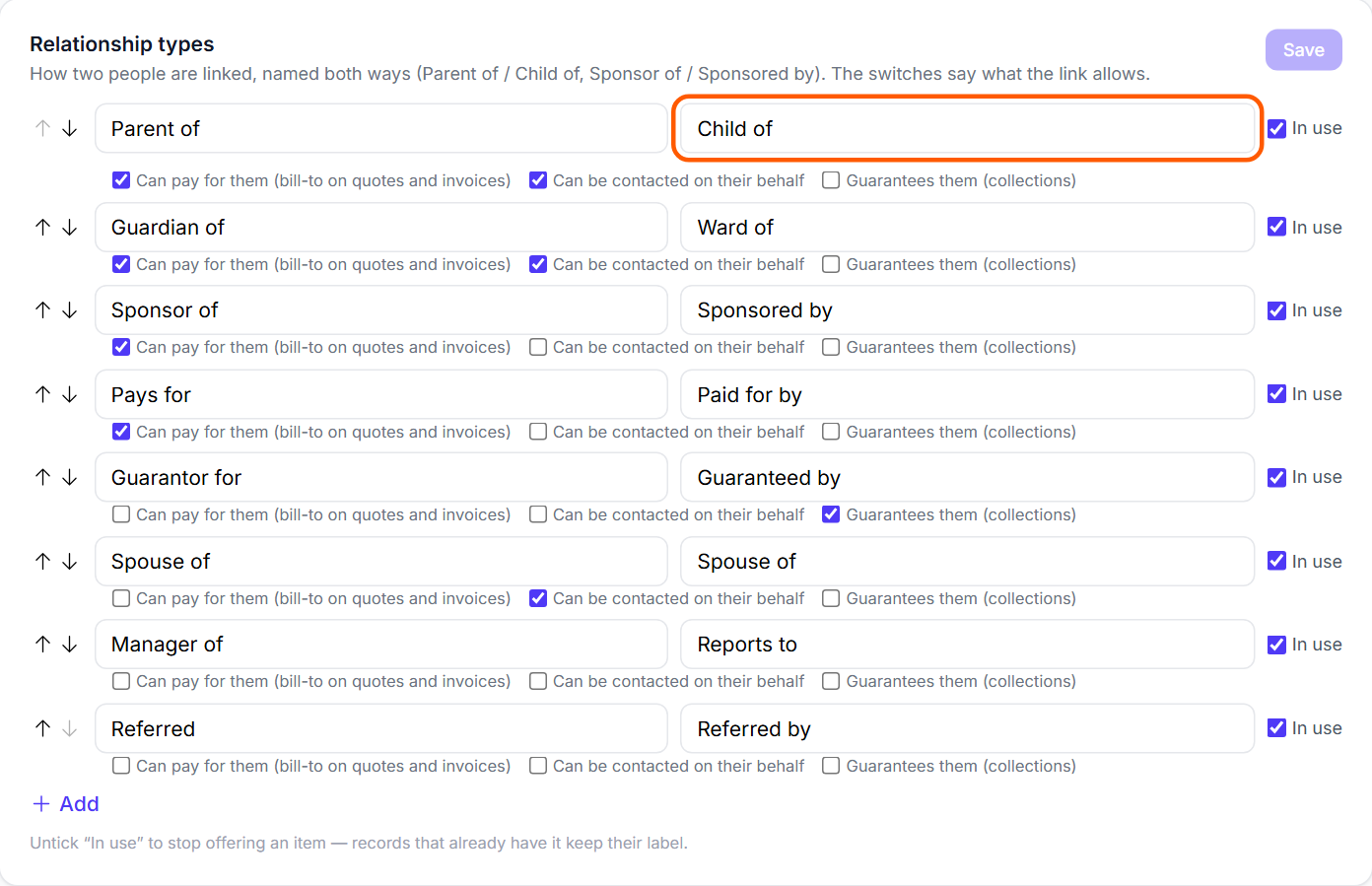
Open Settings → Contacts & organizations → Relationships. Each relationship type has a name both ways: Parent of and Child of, Sponsor of and Sponsored by, Guarantor for and Guaranteed by. The second box, Other way round, is how the link reads from the other person's contact.
Each type has three switches that say what the link allows: Can pay for them (bill-to on quotes and invoices), Can be contacted on their behalf, and Guarantees them (collections).
- Open Settings → Contacts & organizations → Relationships.
- Select + Add and type the name, for example Employer of.
- Type the name the other way round, for example Employed by.
- Tick the switches that apply.
- Select Save.
Agents then link people on a contact's page, in the People card, with + Link someone. They choose the relationship, then find the other contact or add someone not in GoDesk yet.
Today, a linked person who can pay for the contact shows a Pays label in that card. The other switches are recorded on the link.
Set up organizations
Open Settings → Contacts & organizations → Organizations. The page has three parts.
Organization fields work like the contact form. Name is always required. Industry can be limited to a list of values. Add your own fields with Add a field.
Organization types say what an organization is to you, and are also the tabs on Contacts and Organizations. Prospect and Customer cannot be switched off, only renamed: when a deal is won, an organization that was a Prospect becomes a Customer by itself.
Roles at an organization are the roles people have there: Decision maker, Finance, Procurement, Technical, Staff and Other to start with. Each has two switches: Receives invoices and quotes, and Approves purchases.
- Open Settings → Contacts & organizations → Organizations.
- Adjust the organization fields as on the contact form.
- Under Organization types, rename, add or reorder the types and select Save.
- Under Roles at an organization, add your roles, tick the switches and select Save.
On a contact's page, the Organizations card lists the organizations they belong to, with their role and job title. Agents add one with + Add. The star marks the main organization, which is the one the rest of GoDesk shows.
Who can import, export and merge contacts
Importing contacts and organizations, downloading contact lists and merging two contacts are separate permissions on the Contacts module. Admins and supervisors have them to start with.
- Open Settings → Users & access → Roles.
- Select Configure next to the role.
- In the Contacts card, tick or untick Import, Export and Merge.
People without the permission do not see the import and download buttons on the Contacts list.
Check it works
- Open Contacts and select New contact (the plus button).
- Check the fields come in your order, with your names and required marks.
- Pick a contact type that has its own fields and check they appear.
- Try to save without a required field and check the form stops you.
- Open an existing contact and link a person, checking both names read correctly on each contact.
If something is wrong
The Type field is missing from the New contact form: either it is hidden on the Contact form page, or no contact type is in use. Tick In use on at least one type.
A custom field does not show: it may be hidden, set for other contact types, or not asked for on the new form. Open it with Edit and check.
Saving a field says Give the field a name. or Add at least one value to the list.: fill in the name, or the values for a drop-down.
Merging two contacts, importing or downloading says it needs a permission: give the person's role Import, Export or Merge as shown above.
← Administrator guides